
A long list, and no picture of it
The Search Term Report lists every search that showed your Sponsored Products ads, one row at a time, with no groups and no charts. You can see what each search cost. It's much harder to see which kind of shopper is eating your budget, or how much went on clicks that never sold.
Your searches, grouped by what shoppers wanted
The skill reads the words and phrases that carry the most spend in your report and proposes groups by shopper intent: what the shopper was after, such as a feature, an occasion or a general product word. Searches for your brand get a group of their own, and so do searches for competitor brands. You approve or edit every group before anything is built, and the groups are saved, so your next run uses them again.
If you launched recently, it gives you a first clear view of where your ad money went. If you run a large account, or one for a client, it turns the report into something you can present.
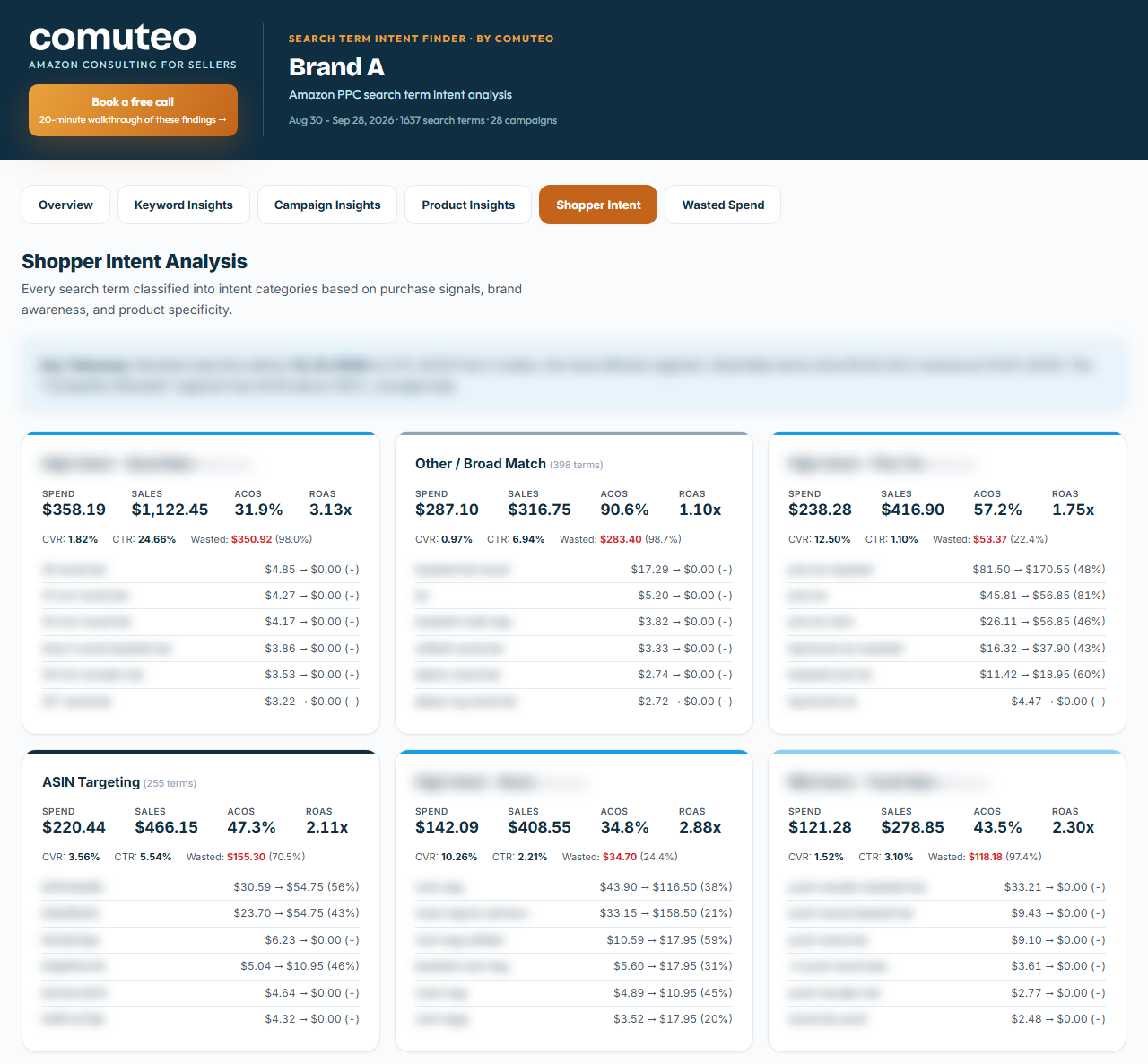
What you get
- One dashboard, a single file that opens in your web browser, with six sections: Overview, Keyword Insights, Campaign Insights, Product Insights, Shopper Intent and Wasted Spend.
- The Overview shows your headline numbers, the weekly trend, results by match type, and spend and return on ad spend for each group.
- Keyword Insights and Campaign Insights rank your searches by revenue and efficiency and your campaigns by spend, and flag high-ACOS searches and campaigns with no sales. Product Insights appears when you match campaign names to your products.
- Wasted Spend shows the searches with clicks and no orders, and how much each group wasted.
- A CSV file of negative keyword candidates, every search with clicks and no orders, sorted by wasted spend.
What it leaves to you
The candidates list has no click minimum, so a search with one click and no order is on it too. Treat it as a list to review. The Keyword Harvester and Negator makes the final call, because it waits until a search has had enough clicks to judge.
On a small report, the written insights leave out comparisons the data can't support, such as return on ad spend for your brand searches on a handful of orders. If your report has no daily breakdown, the dashboard says so and leaves the weekly trend out. A Python script does the counting, and the totals are checked against your report.
What you need
- A product that's live on Amazon, with Sponsored Products ads running. If you haven't launched yet, start with Product Validation.
- A Search Term Report for Sponsored Products from the Amazon Ads console, with the searches, impressions (the times your ad was shown), clicks, spend, orders and sales. Without orders or sales, the skill stops and asks for a new file.
- Your brand name and its common misspellings, and a yes or no on the competitor brands it spots.
- A match between your campaign names and your products, if you want Product Insights. The skill suggests the patterns.
- The Claude desktop app with Claude Cowork. You don't need to install anything else, and the first section of the SOP, Before You Start, shows you how to add the skill.
How a run goes
- Type /amazon-search-term-dashboard in a Claude Cowork chat and attach the report.
- Answer the short intake in one message: your brand names, which of the brands it spotted are competitors, your currency, and whether you want product mapping.
- Approve or edit the groups it proposes. Each one shows the search phrases it's built on.
- Open the dashboard. It's a single file you can keep or send to a client.
Questions
How is it different from the Keyword Harvester and Negator?
The dashboard shows where your ad money went. The Harvester reads the same report and decides what to do about it: which searches to add as keywords and which to negate.
Can I show it to a client?
Yes. It's a single file that opens in any web browser, so you can send it as it is.
Does it change anything in my Amazon account?
No. It reads the report you download and builds its files on your computer.
Where do my reports go?
Into your own Claude app, on your own Claude account. They never come to Comuteo.
Who I am
I'm Rogerio de Andrade. I spent 30 years developing brands in multinationals, then built my own Amazon private label business past $100,000 in sales. I use this skill in my own client work.
Where it fits
Use it for an account review, a client presentation, or before you decide which searches to negate. Then run the Keyword Harvester and Negator on the same report for the lists of searches to add and to negate.
In the download
One zip file. It holds the skill package, which you add once in Claude Cowork (Customize, then Add, then Upload Skill), and the SOP as both PDF and Word. The SOP is the manual: what to download from Amazon, how to run the skill, and what to do with the output. Version 2.5.5, updated October 2026.
How to get it
The Search Term Dashboard is a free download. Sign up with your email address and we'll email it to you. Like our paid skills, it comes with its step-by-step guide (SOP).