
Clicks, spend and no sales
Your Search Term Report lists every search that showed your Sponsored Products ads, with the clicks, spend and sales each one brought. Some of those searches eat your budget and never sell, and others already sell and deserve a keyword of their own.
Sorting them by eye in a spreadsheet is tedious, and the hard call is the search with a few clicks and no orders. Negate it too early and you may lose a sale. Leave it too long and it keeps spending.
Four lists from one report
The skill sorts the searches into four lists:
- Keywords to harvest: searches that sell at or under your target ACOS (ad spend divided by ad sales), to add as exact match keywords.
- Product ASINs to harvest: the same test for the product pages your ad showed on, named by their ASIN (Amazon's product ID).
- Searches to negate: enough clicks and no orders, or orders at an ACOS above one and a half times your target. Negating a search stops your ad showing for it in that ad group.
- Searches to watch: too few clicks to judge yet.
If you launched recently, the lists show which searches already sell. On an older account, they turn the weekly review into a short list of actions, and a small state file lets next week's run show what changed.
Enough clicks before anything is negated
A search only goes on the negate list after it has had enough clicks to judge. The skill works out that number from your own conversion rate (the share of clicks that became orders), and you confirm it before anything runs. Until a search reaches it, it waits on the watch list.
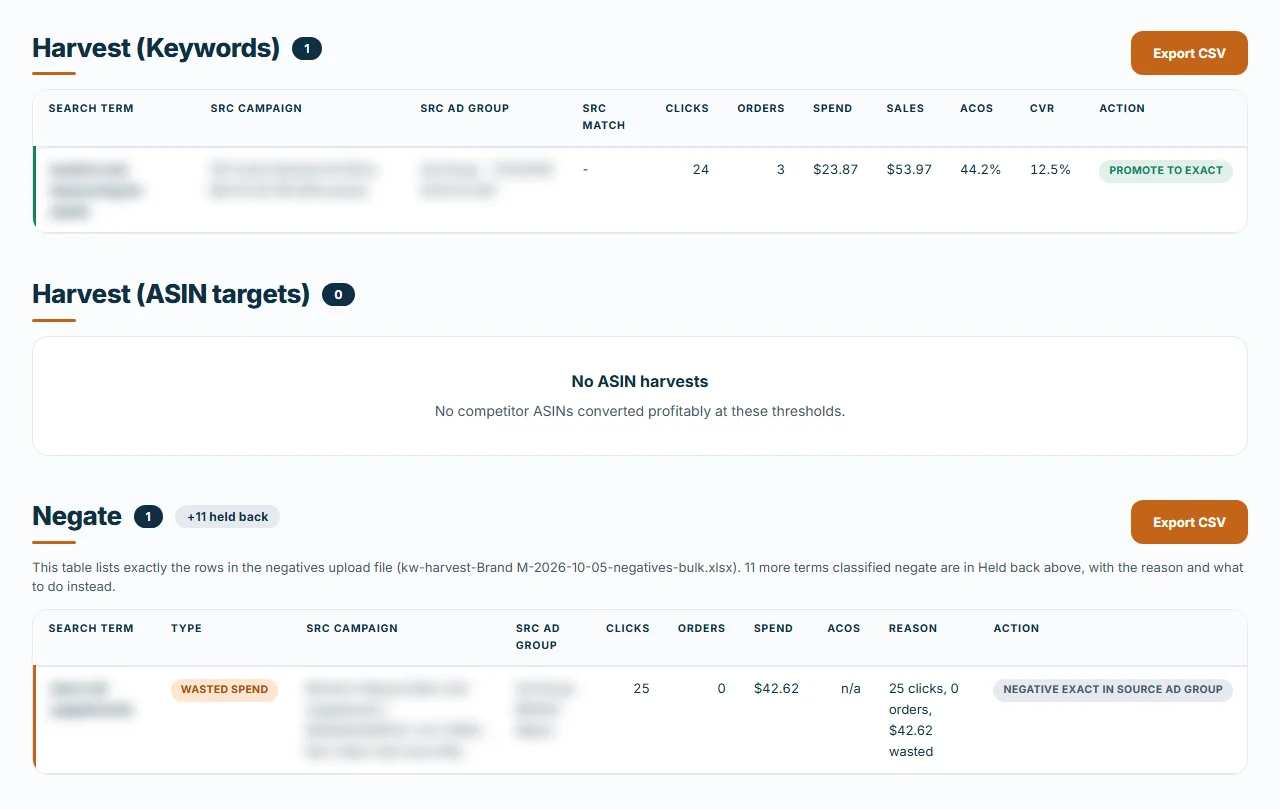
In the run shown above, twelve searches landed on the negate list. Seven still brought orders, so the skill held them back for a bid cut, and two sat in campaigns that were already paused. Two more already ran as exact match keywords in the ad group the negative would go into, so negating them would have stopped each keyword from showing the ad for the very search it targets. The skill held those back too, with a note to pause the keyword or cut its bid. One row reached the negatives file.
You decide what gets uploaded
A search on that list that still brings orders never goes in the negatives file. It's held back with its numbers and a note to cut its bid instead. Attach your bulk operations file too and the skill fills in the campaign IDs, skips paused campaigns, and holds back any search that already runs as a live keyword in the ad group it came from, with a note to pause that keyword or cut its bid. Attach your keyword research and it won't negate a term you marked as strategic.
The skill holds back the risky rows with the reason for each and leaves the decision to you.
What you need
- A product that's live on Amazon, with Sponsored Products ads running. If you haven't launched yet, start with Product Validation.
- A Search Term Report for Sponsored Products from the Amazon Ads console, and your target ACOS. The skill has no default target and asks you for it.
- For the extra checks, your bulk operations file (the spreadsheet of your campaigns from Amazon Ads) and your keyword research.
- The Claude desktop app with Claude Cowork. You don't need to install anything else, and the first section of the SOP, Before You Start, shows you how to add the skill.
How a run goes
- Type /amazon-kw-harvester-negator in a Claude Cowork chat and attach the report.
- The skill checks the report first: how the dates are grouped, what each campaign actually advertises, and how many clicks a search needs at your conversion rate.
- It asks its questions in one message, then writes the report and files to your Downloads folder.
- You review the lists, add the harvested searches to your campaigns, and upload the negatives file in Amazon Ads bulk operations.
Questions
Will it work on a small account?
Yes. On a small report, more searches stay on the watch list until they've had enough clicks, and the skill suggests a longer date window.
Can I trust the numbers?
A Python script recalculates ACOS, conversion rate and cost per click from each row's own numbers, so the same report always gives the same lists.
Does it change anything in my Amazon account?
No. It works from the report you download, and the negatives go into your account only if you upload them.
Where do my reports go?
Into your own Claude app, on your own Claude account. They never come to Comuteo.
Who I am
I'm Rogerio de Andrade. I spent 30 years developing brands in multinationals, then built my own Amazon private label business past $100,000 in sales. I use this skill in my own client work.
Where it fits
Run it first in your weekly ad routine, before any bid changes, so the Bulk Bid Optimizer works on clean traffic. The Search Term Dashboard reads the same report as a visual overview, and the SP Bulk Builder can build exact match campaigns for what you harvest.
In the download
One zip file. It holds the skill package, which you add once in Claude Cowork (Customize, then Add, then Upload Skill), and the SOP as both PDF and Word. The SOP is the manual: what to download from Amazon, how to run the skill, and what to do with the output. Version 2.4.5, updated October 2026.
If it isn't right for you
It's a one-time purchase, with no monthly fee and no percentage of your ad spend. If the Keyword Harvester and Negator isn't right for you, email us within 14 days of buying it and we'll refund the full price. You don't have to give a reason.