
33 columns a search, and no answer on what to change
Search Query Performance, in Brand Analytics, shows for every search how often products were seen, clicked, added to cart and bought across the market, and your brand's share of each step. That's 33 columns a search. It's hard to know which number to act on, and the purchase counts don't match your sales reports, which makes the file easy to doubt.
This skill reads the report against fixed rules and thresholds, and it ends with one call per keyword, each tied to the number that triggered it.
What you get
The analysis works in five steps:
- Branded against unbranded searches: how much of your traffic comes from searches with your brand in them, as a read on brand health.
- Where shoppers drop off on your top 50 unbranded searches, from seen to clicked to added to cart to bought. Your price is checked against the market's before a low click rate is blamed on the listing.
- Your share against the market's at each step, to find where competitors win.
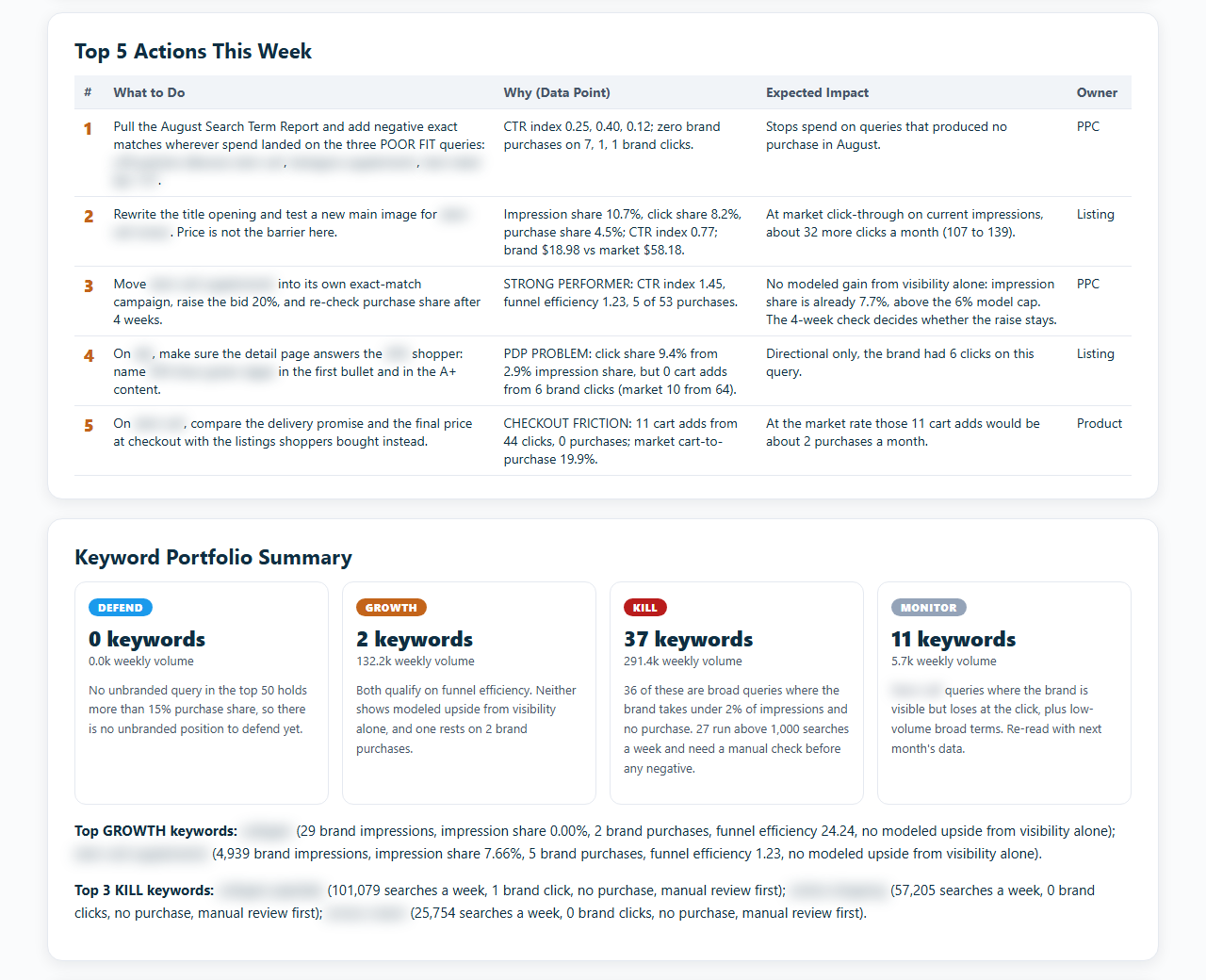
- One call per keyword: Kill (a poor fit, stop paying for it), Defend (you already win a solid share of its purchases, protect it), Growth (shoppers who find you buy, get seen more) or Monitor (thin or mixed data, watch it).
- A summary with the top five actions and specific changes for your ads and your listing (title, bullet points, images).
Every recommendation names the number that triggered it and is something you can do within seven days. The analysis arrives in the chat. On request, it becomes a branded report for you or a client, and an Excel file of every call and action for whoever runs your ads.
Rules it follows on every run
- It never mixes branded and unbranded searches in one diagnosis, because brand searches naturally click and convert better.
- A keyword whose product page is losing shoppers never lands in Growth, so the skill won't tell you to buy more traffic for a page that doesn't convert yet.
- A keyword with more than 1,000 searches a week that is headed for Kill is flagged for you to review by hand before you negate it.
- Any number it can't compute from your file is marked as an assumption or n/a.
What you need
- Amazon Brand Registry, because Search Query Performance lives in Brand Analytics, which Amazon shows only to enrolled brands.
- A Search Query Performance export with all 33 columns switched on (Seller Central shows 21 by default).
- Your brand name, product line names and common misspellings, which decide what counts as a brand search.
- Your competitors' brand names, to flag their brand searches where you also show up (optional).
- The Claude desktop app with Claude Cowork. You don't need to install anything else, and the first section of the SOP, Before You Start, shows you how to add the skill.
The SOP advises skipping this review on a new or very low-volume account, because a search with little traffic gives numbers too noisy to act on. A newly launched brand can start once its search traffic builds up, and an established brand can run it every month.
If you haven't launched a product yet, start with Product Validation, which helps you check a product before you buy inventory.
How a run goes
- Download the Search Query Performance report from Brand Analytics in Seller Central.
- Type /amazon-sqp-deep-analysis in a Claude Cowork chat, attach the export, and give your brand, product line and misspelling list.
- Read the analysis in the chat.
- Ask for the branded report or the Excel file if you need them.
Questions
Why don't the purchases match my sales reports?
Search Query Performance counts only purchases that start from an Amazon search, so its totals run lower than your sales reports. The skill expects that, never reports it as an error, and works from shares and rates.
How is it different from the CTR/CVR Benchmark?
This one reads the whole account once a month and gives every keyword a call. The Benchmark follows one product against the market, week by week. They're meant to be used side by side.
Where it fits
Run it once a month on the previous month's export, then compare how your keywords moved between calls. When the calls point at your ads, the actions go into the weekly routine with the Keyword Harvester and Negator and the PPC Gap Finder.
In the download
One zip file. It holds the skill package, which you add once in Claude Cowork (Customize, then Add, then Upload Skill), and the SOP as both PDF and Word. The SOP is the manual: what to download from Amazon, how to run the skill, and what to do with the output. Version 2.2, updated October 2026.
If it isn't right for you
It's a one-time purchase of $47. If the Deep Analysis isn't right for you, email us within 14 days of buying it and we'll refund the full price. You don't have to give a reason.